OwnTime
Sleep and Energy: Motion vs Microsoft To Do

The planning difference shows up on a tired Tuesday
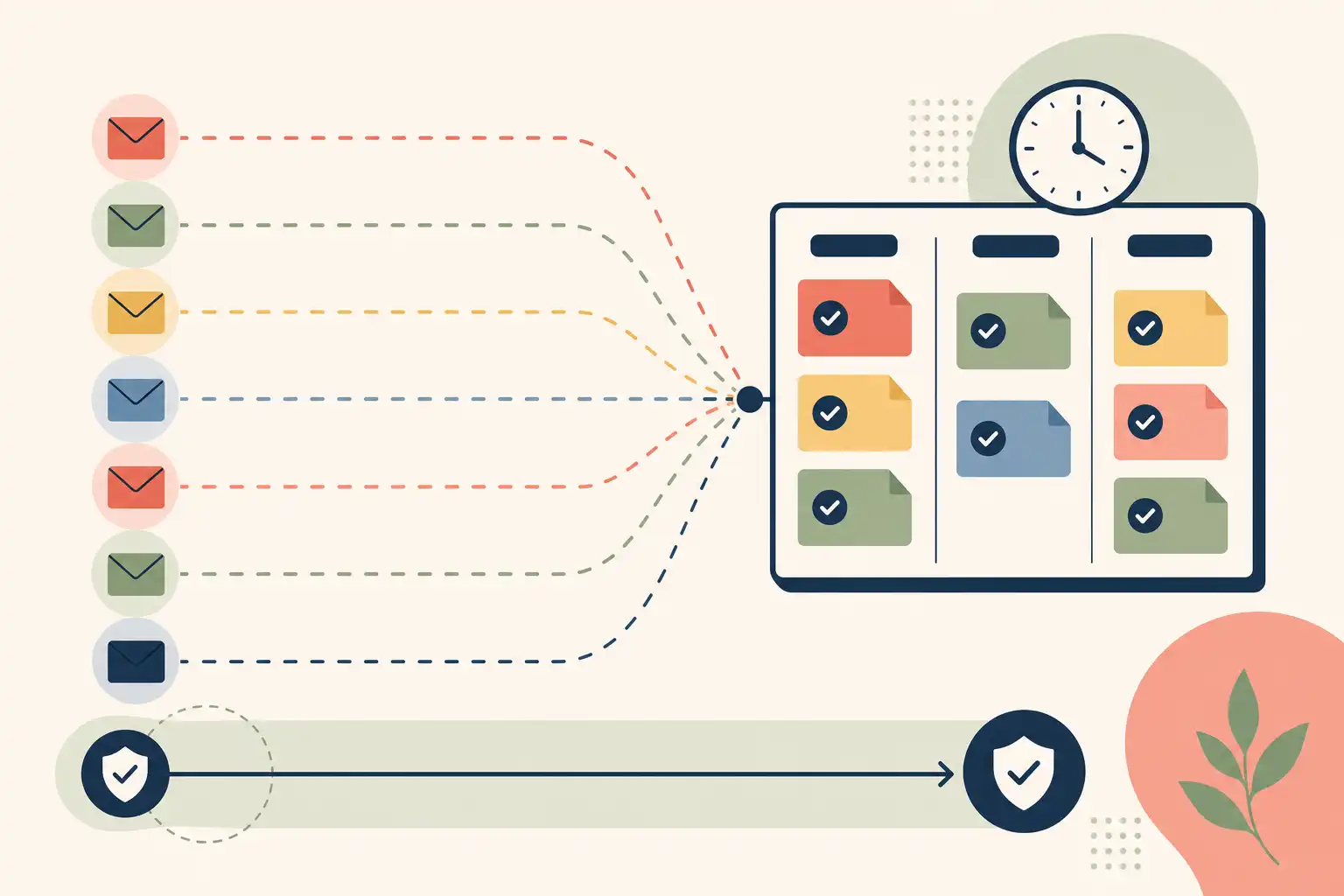
Motion automatically assigns tasks to available calendar time using details such as duration, deadline, priority, availability, and calendar changes. Microsoft To Do asks you to choose a smaller set of tasks for My Day. Both can hold a task list, but they ask for effort at very different moments.
That distinction matters when sleep has been poor or the day is already crowded with meetings. Motion does more of the calendar maintenance in advance and as the schedule shifts. Microsoft To Do keeps the final choice with you, which can be useful when a precise plan would overstate the energy you actually have.
My position is simple: use Motion when calendar churn is the reason important work slips; use Microsoft To Do when a brief daily choice is more realistic than maintaining a fully scheduled day. A planner should reduce avoidable decisions, not turn every open hour into a promise.
Low energy changes the cost of planning
Sleep affects the conditions in which work gets planned and started. A meta-analysis published in the Journal of Organizational Behavior found a positive relationship between sleep and work performance, while also finding that results varied by how researchers measured sleep and performance. The practical takeaway is modest: no task app can erase a bad night, though the right setup can remove friction you do not need. Read the meta-analysis.
Three planning costs usually rise as energy falls:
- Task switching: Returning to a draft after an email, spreadsheet, and meeting takes more effort than the calendar shows.
- Task estimation: A task estimated at 45 minutes can take far longer when it needs judgment, concentration, or a difficult conversation.
- Task selection: A long, flat list makes it easier to avoid the meaningful item and finish only easy work.
A lower-energy day does not need to become an abandoned day. It needs fewer active choices and a more honest view of capacity. A flexible two-lane planning system can also help separate commitments from work that is useful but optional today.
Motion works best when the calendar keeps moving
Motion is built for work that needs a protected time slot and has a meaningful deadline. Its scheduler considers available time, task duration, deadlines, priority, and new calendar events, then rearranges planned tasks as conditions change. Motion describes its auto-scheduling rules here.
For someone with client calls scattered across a week, that can remove a tedious loop: a proposal no longer has to be manually dragged to a new slot every time a meeting changes. The calendar absorbs some of the disruption. That is where Motion earns its place.
What Motion does well for energy
Motion reduces one repeating question: When will this happen? A scheduled block gives deadline-driven work a home, which is more useful than another reminder for work that needs 60 or 90 uninterrupted minutes.
Its best use is capacity protection. Reserve a morning block for a report, leave space after a meeting cluster, and let the scheduler adjust around genuine changes. The result is a plan that keeps important work visible without requiring a fresh rebuild at 2 p.m.
Where automatic scheduling can mislead
An available slot is not necessarily a high-focus slot. Motion can see calendar availability, but a 90-minute gap after four meetings may still be a poor setting for a strategy memo or complex analysis.
That is the main risk with calendar-first planning: the calendar can look complete while the workload is impossible. Better inputs produce a better schedule, so use conservative duration estimates, restrict your available work hours, and protect only the focus windows you can usually support.
Motion should not schedule every spare 30 minutes. Leaving unscheduled buffer time is the better design, especially around meetings, deadlines, and the part of the day when energy usually drops.
Microsoft To Do keeps the choice in your hands
Microsoft To Do is a lighter task system with a direct connection to Outlook. Its My Day list starts fresh each day; tasks can be added directly or chosen from suggestions, while due dates, reminders, recurring tasks, and flagged Outlook email can feed into the broader task list. Microsoft explains My Day and its Outlook connection here.
Unfinished tasks do not disappear from Microsoft To Do just because a day ends. They stay in their original lists and may appear in Suggestions again, so My Day can remain a daily working list rather than a permanent pile of overdue intentions.
What My Day does well for energy
My Day creates a useful pause between a backlog and the day in front of you. On a low-energy morning, you can select the few tasks with real consequences, add one smaller action that still moves work forward, and leave the rest out of sight for now.
That choice is especially helpful for work that cannot be estimated cleanly. “Review vendor options” might take 15 minutes if the answer is obvious or two hours if the comparison reveals a problem; putting it in a rigid calendar block can create false precision.
Microsoft To Do is also a natural fit for an Outlook-centered workflow. Flagged email can surface in the task system, but the useful habit is to turn only messages requiring action into clear next steps. Reference messages belong in email or a reference system, not in My Day.
The cost of simplicity
Microsoft To Do leaves prioritization with you. Suggestions can surface tasks, but they cannot decide which item is realistic today, what needs to be broken down, or what can wait until tomorrow.
That is manageable with a weekly review and a short set of active lists. It becomes draining when My Day is built from dozens of overdue tasks after a demanding week, because the app has become another place to negotiate with the backlog.
Motion vs. Microsoft To Do for energy-aware planning
| Planning question | Motion | Microsoft To Do |
|---|---|---|
| How does work get a time? | Tasks are automatically scheduled into available calendar time. | You choose tasks for My Day; any time blocking happens separately. |
| Which handles calendar changes better? | Strong for changing calendars because planned tasks can be moved after new events. | Useful for tracking work, but it does not rebuild a calendar plan for you. |
| Which is easier on a low-energy morning? | Helpful if task durations and availability were set up realistically beforehand. | Helpful if choosing a short My Day feels lighter than maintaining a schedule. |
| What is the main energy risk? | Treating every free calendar slot as usable focus time. | Requiring too much prioritization from a large backlog. |
| How does it fit Outlook? | It can sit alongside calendar commitments. | It connects directly with Microsoft tasks and flagged Outlook email. |
| What work fits best? | Deadline-driven, estimable work that needs protected time. | Follow-ups, personal admin, flexible tasks, and work needing daily judgment. |
The decision is less about automation versus simplicity than about where work breaks down. If meetings continually displace important tasks, Motion addresses the actual failure point. If the problem is deciding what deserves attention with limited energy, Microsoft To Do keeps the daily decision visible and small.
A safer Motion setup
Start by limiting what Motion is allowed to schedule. A system with a few clear constraints is easier to trust than one that fills every gap.
- Protect a small number of focus windows. Keep recovery space after meeting clusters and before major deadlines.
- Estimate demanding work conservatively. A difficult analysis task needs room for thinking, not just time to type the final answer.
- Separate focused work from routine execution. Schedule work that requires concentration; leave routine follow-ups and admin tasks flexible.
- Review the next day briefly. If tomorrow includes travel, a poor night, or back-to-back calls, reduce the plan before automatic scheduling turns the day into a wall of obligations.
For example, a 75-minute writing block before client calls may be far more usable than a technically open 90-minute slot at 4:30 p.m. Motion can preserve the first block if you define availability around it. It cannot infer that preference reliably from an empty calendar alone.
A safer Microsoft To Do setup
Keep My Day from becoming a smaller copy of an overwhelming master list. Two lanes are enough:
- Commitments: work with a clear consequence today, such as preparing for a meeting, sending an approval, or paying an invoice.
- Useful next actions: concrete tasks that move work forward with less concentration, such as requesting a document, outlining an email, or collecting source material.
On a typical day, choose a modest number from both lanes. After poor sleep, keep the commitments and add just one useful next action; that preserves progress without pretending you have a full day of discretionary attention.
The useful next action must be specific. “Work on presentation” asks for another planning decision, while “choose three slides for the opening section” gives you a place to begin.
When neither model fits cleanly
Some people do not want each task fixed to an exact hour, yet they also do not want to sort through a large list while mentally spent. Recommendation-based planning can sit between Motion’s calendar automation and Microsoft To Do’s manual daily selection.
OwnTime, for example, can use task effort, timing, flexibility, and recently completed work when surfacing a next task, while allowing routines to remain flexible rather than attaching them to one exact time. That model is useful when guidance matters more than a packed schedule.
Fix the repeated failure pattern
Rescheduling work is normal. A planning system needs adjustment when the same pattern keeps making the next day harder.
| Failure pattern | What you will notice | Specific adjustment |
|---|---|---|
| Motion repeatedly places hard work late in the day | Your most demanding task lands after dense meetings or during a regular energy dip. | Shorten your available work hours, protect an earlier focus window, and increase the task's duration estimate. |
| Motion creates an overpacked calendar | Several scheduled blocks are routinely ignored. | Add unscheduled buffer time and reserve auto-scheduling for deadline-driven work. |
| My Day keeps growing | You select many tasks each morning but carry most forward. | Limit Commitments to tasks with a true consequence today, then choose one or two useful next actions. |
| Microsoft To Do becomes an email graveyard | Flagged messages pile up without becoming actionable work. | Convert only action-required messages into next steps; unflag and archive reference material. |
| One difficult day triggers a system rebuild | You redesign lists, tags, and rules after a rough night. | Keep a prewritten low-energy mode: fewer commitments, one forward-moving task, and no backlog triage until capacity returns. |
Choose Motion if deadline-heavy work keeps getting displaced by meeting changes and manual rescheduling is the recurring burden. Choose Microsoft To Do if Outlook is already central to your work and a short daily selection process feels more sustainable.
A practical next step is to set your low-energy rule before you need it: reduce Motion's schedulable hours for demanding days, or cap Microsoft To Do's My Day at your essential commitments plus one next action. That rule gives the system a useful response before fatigue turns planning into another task.
Related articles