 OwnTime
Google Tasks: Use It as a Work Inbox
Give Google Tasks one focused job
Google Tasks should catch commitments as they arrive and keep the next move visible, rather than trying to become your entire professional operating system. Keep that boundary firm.
It syncs across devices and connects directly with Gmail and Google Calendar. That connection matters. You can add task details, assign dates, and set recurring items when they serve a clear purpose; Google’s Tasks overview explains the built-in Workspace connections.
Do not turn Google Tasks into an archive for every idea, someday project, reference note, and possible obligation. Flat lists bury work.
The aim is a system that flags an approaching problem before it slips through the cracks, not a perfectly complete catalog of your life.
Give each commitment one home
When several tools all claim to answer “What should I do next?”, work gets scattered and choosing a home becomes harder than capturing the task itself. Give each tool one job.
| If it is... | Put it here | Example |
|---|---|---|
| Fixed in time | Calendar | Client call at 2:00 p.m. |
| A next action to remember | Google Tasks | Send revised proposal to Maya |
| A multi-step project plan or shared work | A project workspace or document | Website launch plan with owners |
| Useful information rather than an action | Notes or the relevant file | Interview research and meeting notes |
A task should describe the next visible move that keeps a project moving, while the project plan holds the wider scope, decisions, and ownership. Projects need a separate home.
For example, “Q3 onboarding refresh” leaves too much to decide each time it appears on your list. “Review support tickets and list four onboarding gaps” gives you a place to begin.
Email is where this setup earns its keep. When a message creates a commitment, create a task from it and rewrite the action in your own words; the email remains available for context, while the task states what you need to do.
Start with three practical lists
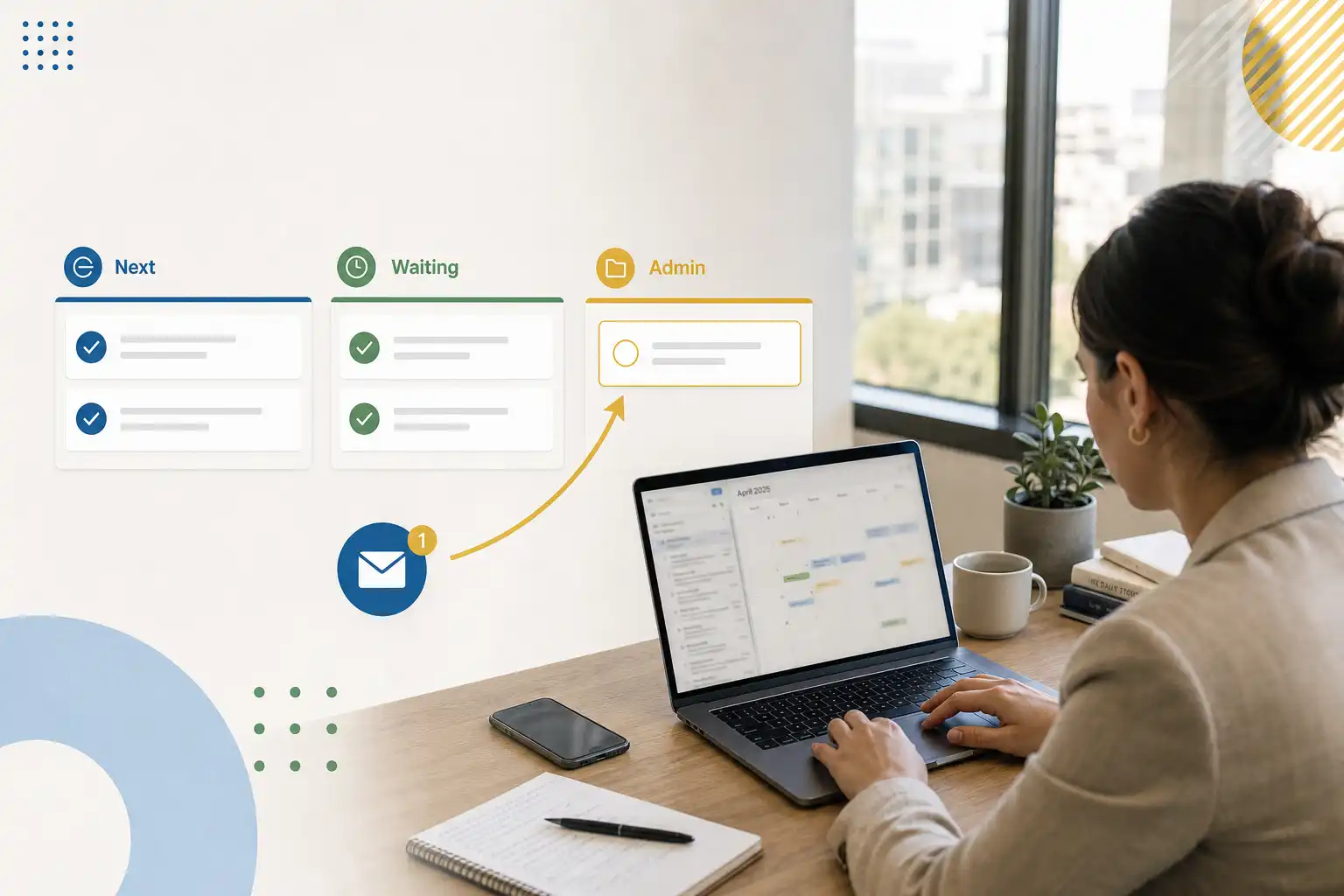
You do not need a separate list for every client or department. Start with these three:
- Work next actions for actions you can personally take soon.
- Waiting or follow-up for items another person owes you, with a date to check in when needed.
- Personal admin for life tasks that should remain visible during busy work weeks.
This setup stops every unfinished project from landing in one pile and pretending to be prioritized. That pile rarely helps.
Add a fourth list only when you can explain, in one sentence, why its tasks cannot belong in an existing list. Strict confidentiality or a genuinely separate stream of work can justify it.
Keep project detail out of the title
Task titles need to scan quickly on a phone, especially when you have only a minute between meetings. Put links, contact names, and decision context in the task details instead.
That small habit reduces the friction of returning after an interruption. A 2005 CHI study on fragmented work found that people often complete other activities before resuming interrupted work, so a clear restart cue saves reconstruction time when you come back. The study is a useful reminder that resuming work is part of the job.
Try task details like these:
- “Open the Drive draft and revise the pricing paragraph first.”
- “Ask Jordan whether legal approved the updated wording.”
- “Use notes from Tuesday’s call and choose option A or B.”
- “Check the customer’s last two emails before drafting a reply.”
Turn incoming work into a concrete action
Process requests in short batches instead of reacting to every email or chat the moment it arrives. Each new commitment needs one clear decision.
| Decision | What to do in Google Tasks |
|---|---|
| It takes under two minutes | Do it now, then close or archive the source item. |
| You need to do it later | Create one next action that starts with a verb. |
| Someone else needs to act | Add it to Waiting or follow-up and set a check-in date if needed. |
| It is project material or reference information | Put the plan or notes in its proper home, then add only the next action to Tasks. |
Begin task names with a verb such as send, draft, review, ask, compare, book, or decide. The wording removes hesitation before it starts.
After a planning meeting, “prepare the vendor recommendation” can sit vaguely in someone’s head until urgent messages take over. Write “Compare the two vendor quotes and recommend one in Friday’s brief,” then add links to both quotes in the details. The task takes a little longer to create, yet restarting it later becomes far easier.
Use subtasks when they reveal a short sequence you expect to complete soon. If the work needs dependencies, owners, or a timeline, keep that plan in a project document or team tool rather than forcing a lightweight list into project-database duty.
Use dates only when they mean something
A dated Google Task can appear in Google Calendar, which helps when the date changes what belongs on today’s agenda. Do not assign every task an invented deadline.
Fake due dates create visual urgency without any real signal. Before long, Tuesday’s calendar fills with tasks that were never actually due Tuesday, and the view loses your trust.
Use a date when one of these conditions applies:
- An external deadline is fixed.
- You deliberately reserved time for the work.
- A follow-up needs to happen on a particular day.
- The task repeats on a real cadence, such as a weekly report or an expense submission.
Leave the date blank when the work matters but can move. “Research new accounting firms” may be worthwhile, but putting it on Wednesday just because Wednesday looks open does not make it urgent.
Google Tasks supports recurring tasks, so reserve recurrence for obligations that actually recur. Treating every good intention as a missed appointment is a fast route to a discouraging backlog.
Run a five-minute daily scan
A daily review should reduce uncertainty before other people’s priorities take over your day. It should not become a half-hour sorting session.
Open Calendar and Google Tasks at the start of the workday, then work through this short list:
- Check fixed commitments and hard deadlines.
- Choose one anchor task that would make meaningful progress.
- Pick up to two supporting tasks that fit around meetings.
- Review Waiting or follow-up for check-ins that are due.
- Remove or rewrite tasks that no longer describe a real next action.
Stop when those choices are made. The scan should leave you calmer and clearer.
When a task survives several daily scans untouched, it is giving you useful information. It may be too vague, too large, no longer relevant, or blocked by a conversation that needs to happen first.
Use Google Tasks where it earns its place
Google Tasks is enough when your main challenge is catching commitments that arrive through Google Workspace and seeing a small set of next actions near your calendar. Its simplicity is an advantage when you protect it.
The tool becomes less comfortable when projects need coordinated ownership or when you must choose among dozens of reasonable tasks. After a meeting-heavy day, even an organized list can demand more decision-making energy than you have available.
A recommendation layer can help when choosing the next task, rather than capturing it, is the recurring bottleneck. OwnTime, for example, can hold flexible work and personal tasks while suggesting a sensible next action based on timing and available effort, with your context in view.
Run this focused setup for two weeks before adding another tool. If the daily scan still takes more than five minutes because choosing work is hard, solve that decision problem rather than building a larger archive.
Related articles