 OwnTime
Notion Time Management for ADHD: Two-Clock Dashboard

Why a calendar needs a second clock
A 2:00 PM meeting needs a cue around 1:42 PM, when there is still time to wrap up, refill water, find the link, and switch gears without a scramble. That gap matters.
A calendar maps commitments, but it rarely tells you when to stop doing the current thing. For adults with ADHD who are capable, busy, and often good at getting things done under pressure, the issue is frequently noticing time early enough to make a useful choice rather than trying harder.
A workable system has two jobs.
- Map time by making fixed commitments, open windows, and rough durations visible.
- Check time by creating a few well-placed moments to see where you are and choose the next move.
Most planning tools handle the first job well. They then assume you will remember to open the plan at the exact moment it becomes useful.
Here is the firm opinion: a giant Notion “life OS” is usually procrastination with excellent typography. A compact dashboard you reopen between meetings will beat a beautiful system you maintain once a month.
What the evidence points toward
ADHD is associated with time-related difficulties, though the experience varies widely and a missed deadline does not diagnose anyone. A review of ADHD and time perception describes challenges with estimating and managing duration, while also pointing out that results differ across measures and study designs. Read the review for the full nuance.
Research involving children and adolescents has found group differences in timing accuracy and precision, including a greater tendency to overestimate duration. That does not mean every adult with ADHD will misjudge every task.
A 2022 meta-analysis supports a practical design choice: use external cues instead of relying entirely on internal time estimates. Put time where you can see it.
The useful skill is strategic monitoring, rather than checking the clock every four minutes. In a 2025 virtual-reality study of children, success on time-based tasks was more closely connected to checking time as a deadline approached than to constant clock-checking. The distinction is useful.
That leads to a simple operating rule. Add a small number of check points around transitions and fixed commitments, then get back to the work.
Build a simple Time Map in Notion
Create one Notion page called Time Map with one database inside it. Use that database for seven days before adding more views, formulas, or linked databases.
Each entry represents a block of time instead of a task alone. A block might be a client call, a commute, an admin sweep, a writing session, lunch, or a household reset.
| Property | What to add | Why it earns a place |
|---|---|---|
| Block | A short name | Makes the day easy to scan. |
| Start window | An exact time for appointments or a rough window for flexible work | Separates real deadlines from intentions. |
| Duration band | 10–20 min, 30–45 min, or 60–90 min | Avoids false precision and makes overruns easier to spot. |
| Type | Anchor, focus, admin, personal, or recovery | Helps prevent a stack of similarly demanding blocks. |
| Next check | A time or transition such as “after lunch” | Creates the second clock. |
| Status | Now, next, later, done, or moved | Keeps the plan current without a complicated workflow. |
Use duration bands instead of heroic estimates. Calling an interruption-prone task “25 minutes” when it could take 50 makes the plan fragile before the day has even started.
Add appointments and non-negotiable commitments as anchors first. Then fit a few flexible blocks around them, leaving visible gaps for messages, transitions, food, and the surprise issue that appears at 3:17 PM.
The blank space is intentional. It is where a plan becomes usable.
Keep three views
The same database can power three filtered views. Each should answer one decision quickly.
Now
The Now view answers, “What am I doing until the next check?” Filter for blocks marked Now or Next, then sort by Start window.
Keep this view aggressively plain. It should show the current block, the next block, and the next fixed anchor.
If opening Notion reveals 20 competing priorities, the dashboard has rebuilt the problem inside a cleaner interface. Choosing is often the expensive part.
Today
The Today view shows every block scheduled for the current day in a timeline or calendar layout. It exposes impossible sequences, such as a 90-minute focus block immediately before a meeting that needs travel or preparation.
Give each fixed event a buffer on one side. That buffer is where late calls, bathroom breaks, and setup time belong.
This Week
The This Week view contains anchors plus unplaced focus blocks across the next seven days. Use it during a deliberate review to give unfinished work a new home rather than copying it into another daily page.
Do not open this view every hour. It encourages future-tripping when the next useful move is probably sitting in the Now view.
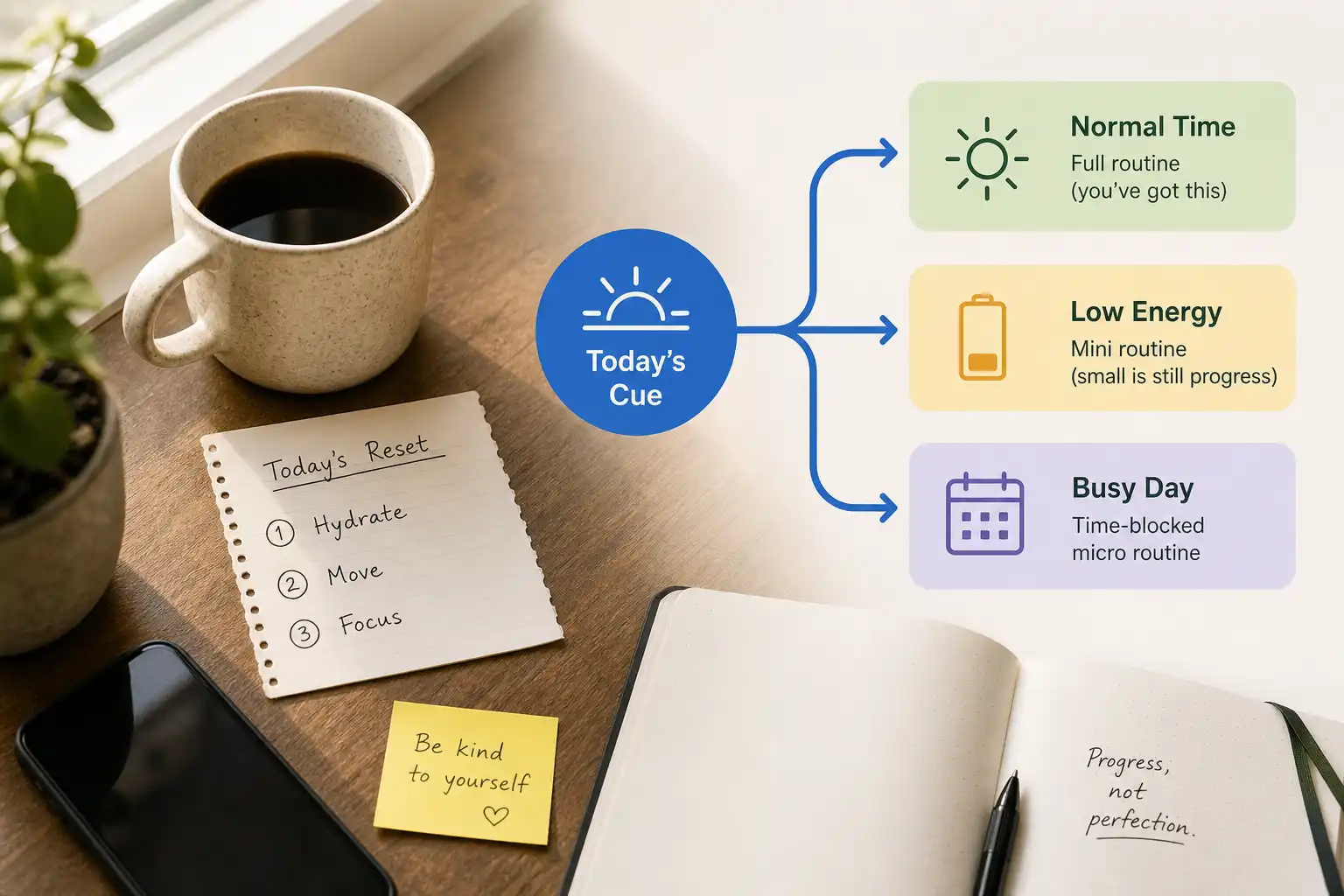
For more on keeping routines flexible rather than rigid, see ADHD executive-function routines grounded in science.
Run the two-clock routine
A dashboard that requires a 25-minute morning ritual will gather dust. This routine should take a few minutes because its job is to steer the day, not document it.
Morning: map the constraints
Open Today and identify fixed anchors, the first flexible block, and the final work cutoff. Then choose one focus block that would move the day forward even if everything else gets messy.
Do not fill every open hour. A plan with no slack is a wish list.
At transitions: check and choose
Use natural transitions as prompts, such as ending a call, returning from lunch, closing a document, arriving home, or making coffee. Open Now and check four things.
- What is the next fixed anchor?
- How much usable time exists before it?
- What energy do you have right now?
- Which block fits without creating a rushed handoff?
A 12-minute window can handle an email reply, a bill payment, or putting away laundry. Starting a research-heavy project in that window is usually a bad bet.
End of day: move the work without judging it
Mark completed blocks as done, move unfinished flexible blocks to a realistic future window, and delete work that no longer matters. Then close the dashboard.
Your Time Map should become lighter as you use it. Once it turns into an archive of plans you missed, it stops being a planning tool and starts acting like guilt storage.
Match the structure to your actual days
The right Notion setup depends on the shape of your schedule, not the template with the best screenshots. Start with the smallest version that can survive a chaotic Tuesday.
| If your days look like this | Use this setup | Expected outcome |
|---|---|---|
| Meetings and appointments dominate | Anchors, buffers, and one next flexible block | Fewer last-minute collisions and less frantic switching. |
| The schedule is open but work expands forever | Two focus blocks with duration bands and a shutdown anchor | More believable boundaries around deep work. |
| Interruptions are frequent | Add a short “after interruption” block each afternoon | A defined re-entry point instead of restarting the whole plan. |
| You routinely plan more than one day can hold | Cap flexible blocks at three per day | Better follow-through and smaller rollover piles. |
| You avoid opening planning tools | Use only the Now view and calendar anchors for 14 days | Lower friction, which is the feature that matters most. |
If the last row sounds familiar, start there. Complexity should earn its place through repeated use.
Reset quickly when the plan breaks
Schedules break because meetings run long, urgent requests land, and energy can look different at 2:00 PM than it did at 9:00 AM. Do not rebuild the entire page when that happens.
Use this four-step reset.
- Protect the next anchor. Confirm the next appointment, pickup, deadline, or bedtime boundary.
- Name the remaining window. Write “25 minutes,” “one low-energy hour,” or “done for today.”
- Choose one fitting block. Pick a smaller task or defer the work that no longer fits.
- Update the status once. Mark the block as moved, then return to the day.
That is enough to recover. The reset is the skill, and it gets more valuable than a perfect morning plan.
Let Notion map time, not manage every interruption
Notion works well for making time visible, reviewing patterns, and keeping flexible plans out of scattered notes. It is less reliable as an in-the-moment interruption system, especially when your phone already carries calendar alerts and messages.
Use your calendar for hard-time commitments and alarms for genuinely time-sensitive transitions. Use Notion for the context around those events, including likely duration, energy needs, and the fallback plan if a block slips.
If choosing the next block remains the bottleneck, a recommendation-based tool such as OwnTime can complement the dashboard by surfacing a suitable task when time opens up. Keep Notion as the map, then use prompts where prompts actually help.
Build the database, enter tomorrow’s anchors, and add two flexible blocks. Run that setup for one workweek before changing anything.
Related articles

Routines for Parents That Survive Real Life
ADHD Executive Function Routines: Science, Not Strict Schedules

Motion for ADHD: A Personal-Life Setup That Holds

AI Study Assistants for ADHD: An Evidence Check

Google Tasks for ADHD: A Low-Friction System
ADHD Executive Function: Sunsama vs Notion for Parents