 OwnTime
Microsoft To Do Routines for ADHD Beginners

Start with four places for tasks
Create four lists in Microsoft To Do before adding any elaborate rules, because fewer destinations mean fewer decisions about where a task belongs. Start small.
Routines can reduce the decision load that remains after work, messages, and life admin have already used up attention.
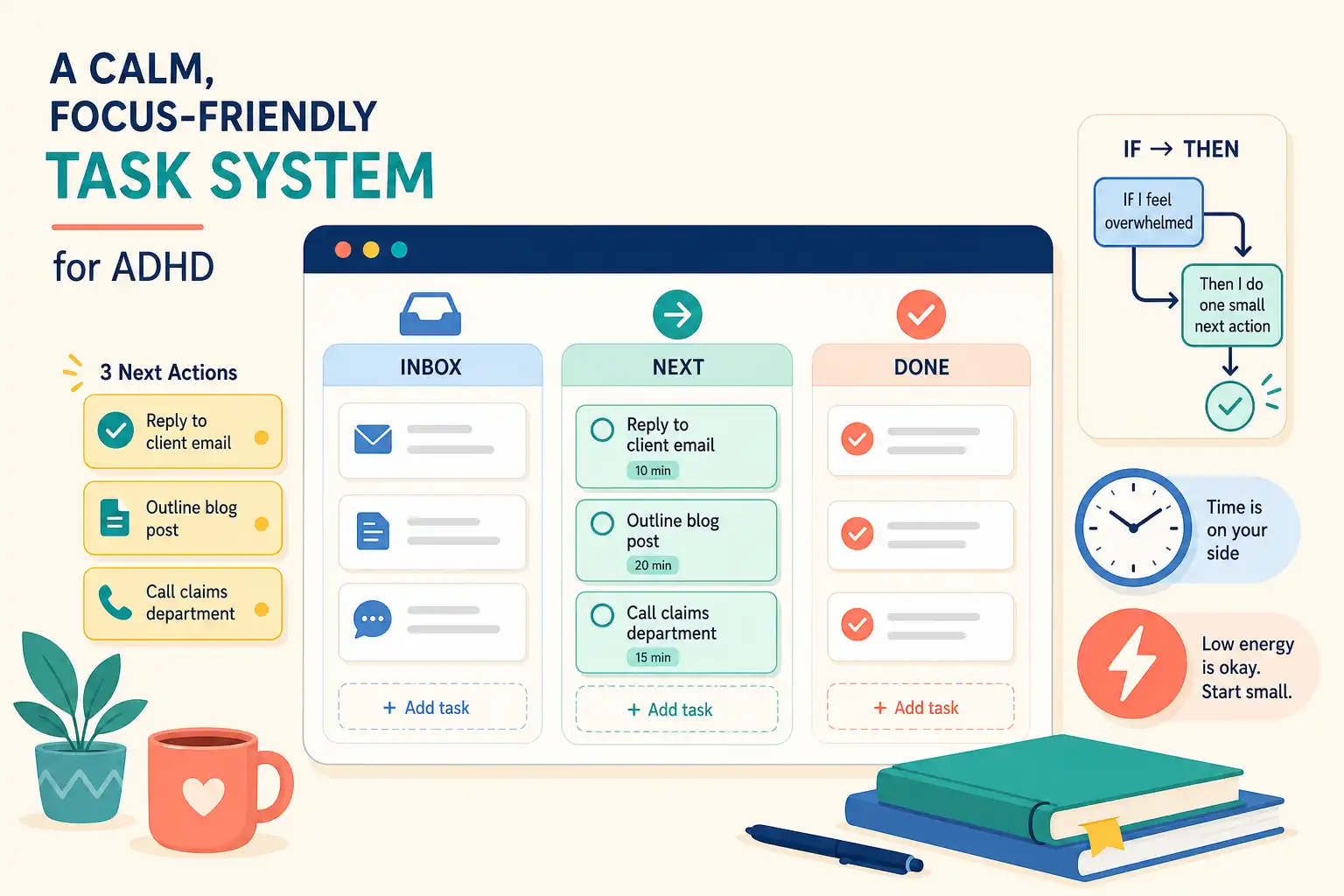
- Inbox holds every new thought, request, errand, and task until you sort it.
- Work or Study holds commitments connected to your job, classes, or career.
- Home holds chores, calls, errands, and personal administration.
- Routines holds recurring actions that keep ordinary life moving.
Treat My Day as a temporary workspace for today, not permanent storage. Think of it as counter space instead of a storage closet. Capture a task before improving its wording, choosing a date, or deciding which list deserves it.
Your Inbox catches tasks quickly, while the other three lists help you find tasks when you are ready to choose. That separation removes a surprisingly sticky bit of friction.
During your first week, skip lists for every room, person, project, or mood. Search is usually faster until a category proves that it earns a dedicated list.
Begin with three routines that solve recurring trouble
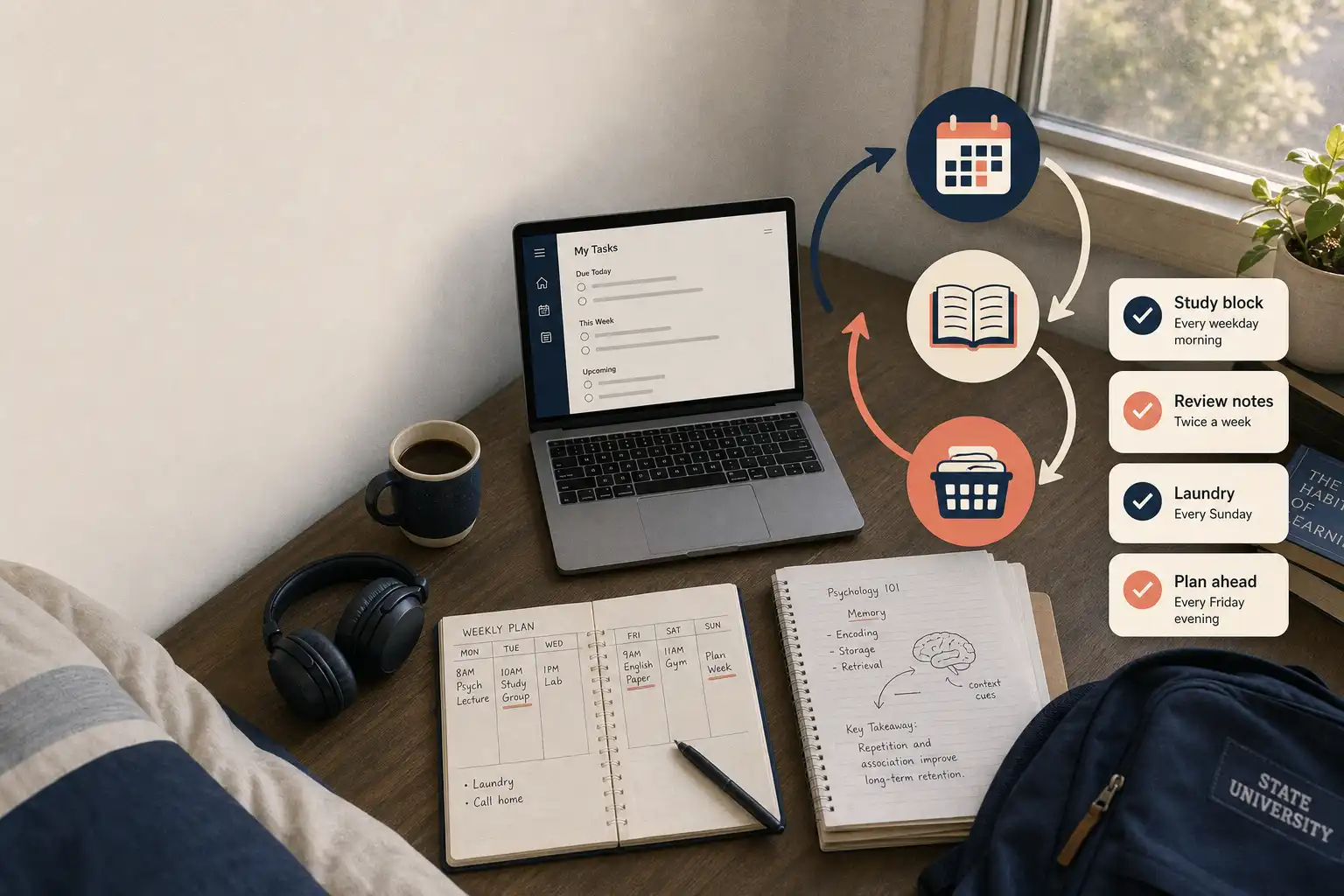
Start with three routines total, each tied to a problem that repeatedly costs you time or creates last-minute stress. A routine needs a clear action and a rhythm you can sustain on an average week.
Make one routine a daily anchor, such as “Open Microsoft To Do and choose three tasks.” Attach it to a dependable cue, like your first drink or opening your laptop.
Set a weekly reset for reviewing your Inbox and upcoming tasks after a regular meal or before you finish work for the week. Keep it brief at first.
Use the remaining routine for maintenance, such as checking laundry or refilling prescriptions at a consistent low-pressure time. Choose the task that tends to become urgent only after it has become inconvenient.
“Get my life together” cannot be completed or restarted easily. “Open Microsoft To Do and choose three tasks” can.
Give repeats, dates, and reminders separate jobs
A repeating task means that something will need attention again, while a due date signals a consequence tied to a particular day. Mixing those signals is how Planned becomes a guilt archive.
Microsoft To Do can repeat tasks daily, on weekdays, weekly, monthly, yearly, or on a custom schedule, and dated tasks appear in the Planned view. Microsoft's guide to due dates, reminders, and repeats covers the setup details.
Use repeats for ongoing responsibilities such as reviewing the Inbox on weekdays, putting bins out each week, filing an expense report each month, or renewing a subscription each year. These tasks return because the work returns.
Reserve due dates for commitments with an actual deadline, including sending forms before Thursday, paying rent, booking a dentist visit before a referral expires, or submitting a tax document. Flexible tasks belong in My Day far more often than they belong in Planned.
Set reminders sparingly, because a reminder should arrive when you could reasonably act on it. One reminder for a weekly review can help; seven alerts for chores you cannot do at work become background noise.
Use quick entry when it helps
In supported versions of Microsoft To Do, wording such as “Friday,” “tomorrow 5pm,” or “every Monday” can be recognized while you create a task and turned into task details. Smart date, time, and repeat recognition is currently available in specific Windows and iOS experiences, so enter details manually when the prompt does not appear.
The best entry method is the one you will keep using. Speed beats perfect formatting here.
Make My Day a short, usable menu
Open My Day at a stable point, such as after breakfast, when work begins, or once you sit at your desk. Pairing it with something that already happens reduces the need to remember the routine itself.
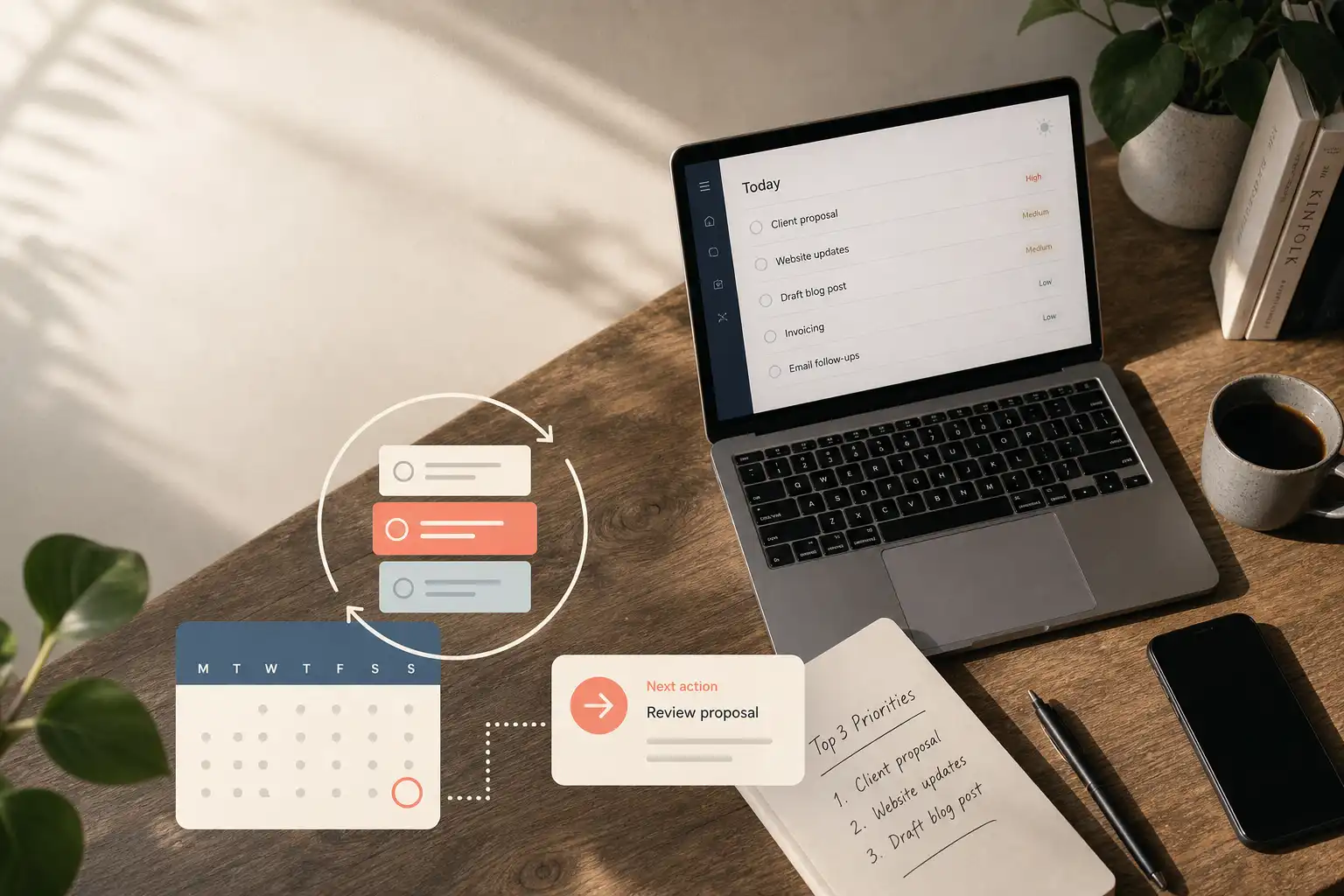
Add no more than three tasks.
- Choose one progress task that moves a meaningful work or personal commitment forward.
- Include one maintenance task that stops ordinary life from turning into an emergency.
- Keep one easy-start task for low-focus moments, when finishing something small helps you get moving again.
Three is a starting menu, not a ceiling on what you may accomplish. It prevents the first decision of the day from becoming a choice among 47 tasks that all seem overdue.
When plans change, remove tasks from My Day and choose again later. A plan that bends is more useful than a perfect plan you stop opening.
Rewrite vague routines as first actions
A recurring task may still be hard to begin when it is broad, lengthy, or packed with invisible decisions. Make the first move painfully obvious.
Replace “Do monthly finances” with “Monthly finances: 10-minute start.” That wording permits a beginning without promising an entire evening.
Microsoft To Do lets you add steps within a task, which helps when a routine follows the same sequence every time. Microsoft's task-details guide explains steps, notes, tags, and importance markers.
For the monthly-finances task, use four steps.
- Download the latest statement.
- Categorize three transactions.
- Pay any bill with a real deadline.
- Decide whether to continue or stop.
The final step matters because a useful routine does not need to consume every spare minute before it counts.
Repair the routine once a week
Create one repeating task called “Routine repair” and give it about 10 minutes at first. Treat it as maintenance instead of a performance review.
Use the check-in to review five practical signals.
- Which repeated task happened with little resistance?
- Which task kept getting postponed?
- Is the action too vague, too frequent, or attached to the wrong cue?
- Are any overdue dates pretending to be real deadlines?
- What can you delete, defer, or simplify this week?
When a routine is missed twice, change the system before blaming yourself. Move the cue, shrink the first action, or change a daily repeat to weekly.
Fix the failure you can see
Small breakdowns give you useful data when the response is specific. Use the pattern you notice to make one adjustment rather than rebuilding the whole setup.
| Failure mode | What you notice | Specific adjustment |
|---|---|---|
| Too many repeats | The Routines list feels noisy and you stop opening it | Keep repeats with a clear benefit, then move lower-priority daily tasks into a weekly review |
| Too many due dates | Planned is full of old tasks that no longer mean anything | Remove false deadlines and use My Day for flexible work |
| A task will not start | You move it from one day to the next | Rename it as a 5- or 10-minute first action and add steps |
| You do not open the app | Inbox grows while tasks live in your head or elsewhere | Attach a two-minute check to opening your computer or finishing lunch |
| You missed a routine | You want to catch up on everything at once | Decide whether to skip, reschedule, or change the cadence without creating a backlog punishment |
Notifications cannot rescue a task that has no workable next action. If you repeatedly dismiss an alert, adjust the time, reduce the scope, or remove that reminder.
Let the system earn extra complexity
For the first 7 days, keep the four lists, add three routines, and limit My Day to three items. Add complexity only after the basic setup has proved useful.
Microsoft To Do works well when you prefer to define the structure yourself and return to a short list each day. If a highly variable schedule still makes daily selection hard, OwnTime is another option that can surface context-aware task recommendations instead of making you sort a long list from scratch.
On your next ordinary Tuesday, open My Day, pick one task you can start in 10 minutes, and let that be enough to restart.
Related articles